Oracle Database Express Edition
setup.exe, double-click it.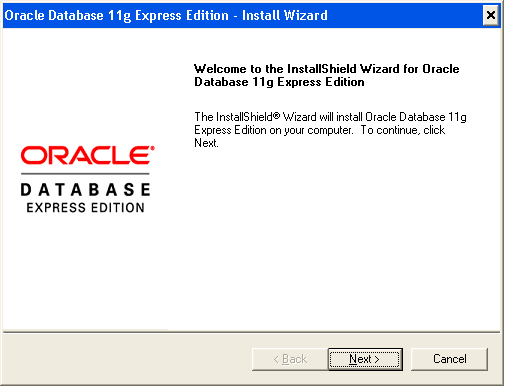
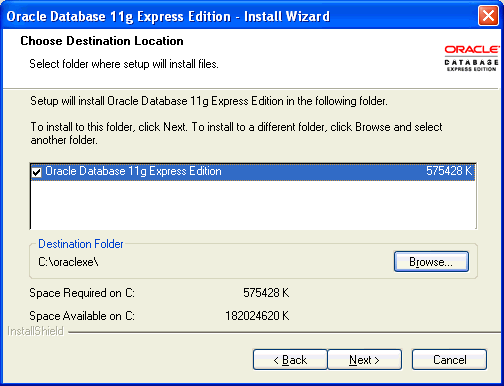
If you are prompted for a port number, then specify one.
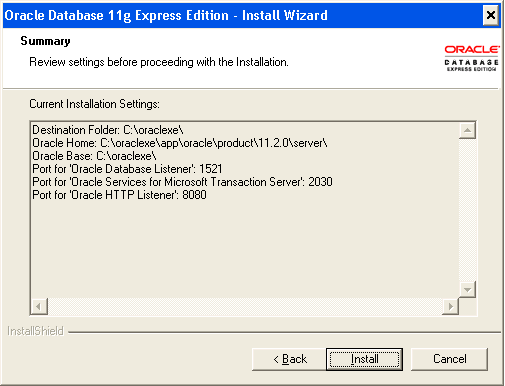
The following port numbers are the default values:
1521: Oracle database listener
2030: Oracle Services for Microsoft Transaction Server
8080: HTTP port for the Oracle Database XE graphical user interface
If these port numbers are not currently used, then the installation uses them automatically without prompting you. If they are in use, then you will be prompted to enter an available port number.
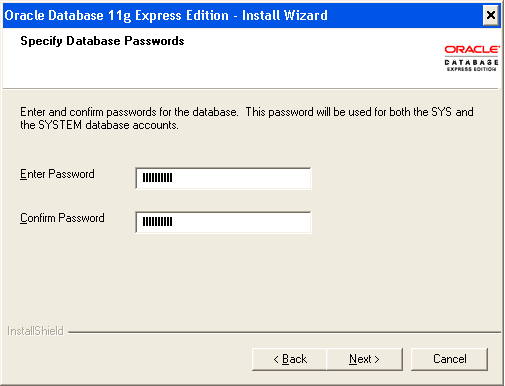
In the Specify Database Passwords window, enter and confirm the password to use for the SYS and SYSTEM database accounts. Then click Next.
In the Summary window, review the installation settings, and if you are satisfied, click Install. Otherwise, click Back and modify the settings as necessary.
Enabling the Control Panel Services for .NET Stored Procedures and Oracle Services for Microsoft Transaction Server
Select Start, then Control Panel.
In the Control Panel, double-click Administrative Tools, and then Services.
Right-click each of the following services, and then select Properties from the menu. Then set the start-up type of the service to Automatic.
OracleXEClrAgnt (for .NET stored procedures)
OracleMTSRecoveryService (Oracle Services for Microsoft Transaction Server)
Click OK.
Start each service by right-clicking its name and selecting Start from the menu.