Tuesday, September 15, 2020
Saturday, September 05, 2020
RDBMS PL/SQL Basic Programs
RDBMS Programs
1) Program
to print Hello World.
SET SERVEROUTPUT ON
BEGIN
DBMS_OUTPUT.PUT_LINE('Hello World');
END;
/
Output
Hello World
PL/SQL procedure successfully completed.
2) Program
to demonstrate the use of variable.
SET serveroutput ON
DECLARE
name
varchar(40);
BEGIN
name :=
'Chirag Mewada';
DBMS_OUTPUT.PUT_LINE('Hello
' || name);
END;
/
Output
Hello Chirag Mewada
PL/SQL procedure successfully completed.
3) Program
to demonstrate the use of %TYPE.
SET
serveroutput ON
DECLARE
name Worker.FIRST_NAME%TYPE;
BEGIN
SELECT FIRST_NAME INTO name
FROM
Worker
WHERE WORKER_ID = 002;
DBMS_OUTPUT.PUT_LINE('Hello ' || name);
END;
/
Output
Hello Chirag Mewada
PL/SQL procedure successfully completed.
Friday, August 28, 2020
RDBMS Using Notepad++ to Execute Oracle SQL
Using Notepad++ to Execute Oracle SQL
Here are the steps:
- Launch Notepad++
- Main menu -> Plugins -> Plugin Manager -> Show Plugin Manager
- Available Tab, Find and check NppExec plugin

- Press Install button to download & install plugin – restarts Notepad++
- Open a SQL script
- Press F6 key (NppExec’s default keyboard mapping for “Execute Statement”)
- Enter the following macro script into the Execute pop-up
set ORA_USER=bert
set ORA_PASS=bert1234
set ORA_SID= ORCL
npp_save
cmd /c copy /y "$(CURRENT_DIRECTORY)\$(FILE_NAME)" "$(SYS.TEMP)\$(FILE_NAME)" >nul 2>&1
cmd /c echo. >> "$(SYS.TEMP)\$(FILE_NAME)"
cmd /c echo exit >> "$(SYS.TEMP)\$(FILE_NAME)"
sqlplus -l $(ORA_USER)/$(ORA_PASS)@$(ORA_SID) @"$(SYS.TEMP)\$(FILE_NAME)"

- Change the first three variables for your database, username and password
- Press the OK button
RDBMS Install Oracle Database Express Edition in Windows 10
Oracle Database Express Edition
setup.exe, double-click it.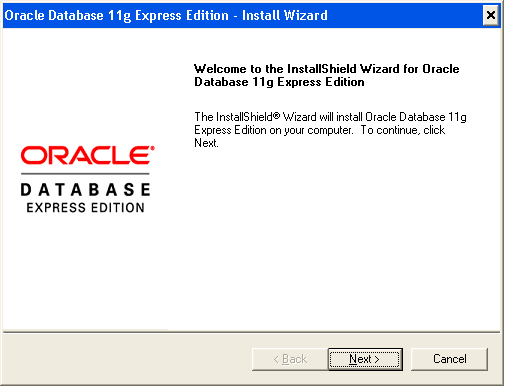
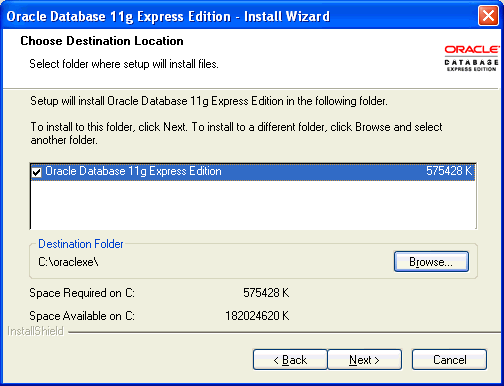
If you are prompted for a port number, then specify one.
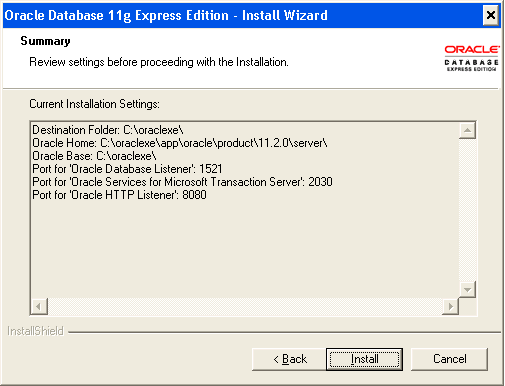
The following port numbers are the default values:
1521: Oracle database listener
2030: Oracle Services for Microsoft Transaction Server
8080: HTTP port for the Oracle Database XE graphical user interface
If these port numbers are not currently used, then the installation uses them automatically without prompting you. If they are in use, then you will be prompted to enter an available port number.
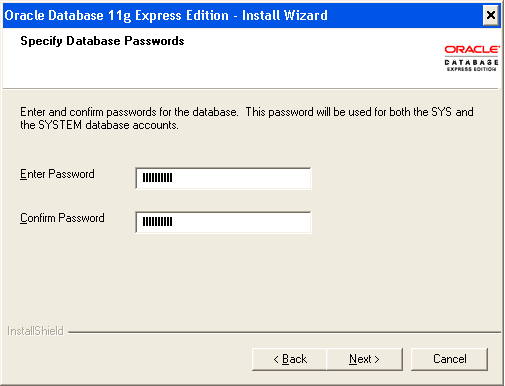
In the Specify Database Passwords window, enter and confirm the password to use for the SYS and SYSTEM database accounts. Then click Next.
In the Summary window, review the installation settings, and if you are satisfied, click Install. Otherwise, click Back and modify the settings as necessary.
Enabling the Control Panel Services for .NET Stored Procedures and Oracle Services for Microsoft Transaction Server
Select Start, then Control Panel.
In the Control Panel, double-click Administrative Tools, and then Services.
Right-click each of the following services, and then select Properties from the menu. Then set the start-up type of the service to Automatic.
OracleXEClrAgnt (for .NET stored procedures)
OracleMTSRecoveryService (Oracle Services for Microsoft Transaction Server)
Click OK.
Start each service by right-clicking its name and selecting Start from the menu.